Jetraw UI
Jetraw UI is a desktop application for Windows and macOS that provides a graphical interface for managing licenses, device calibrations, and compressing or decompressing TIFF files. For installation instructions, see Installation.
Using Jetraw UI
On Windows and macOS, Jetraw comes with a graphical user interface where you can easily enter and check your license data, install and view device calibrations, and compress or decompress TIFF files.
License setup
To enter your license key:
Open Jetraw UI
Click on the “License” menu item in the left sidebar
Enter your license key in the provided field
The license will be saved automatically to the correct location
For more information about license file locations, see Installation.
Adding device calibrations
To add support for a camera:
Click on “Devices” in the left sidebar
Drag and drop the calibration file (
.datextension) that you received onto the right panelA new device should appear in the list
The calibration file contains the camera-specific parameters needed for image preparation. For information about calibration file locations, see Installation.
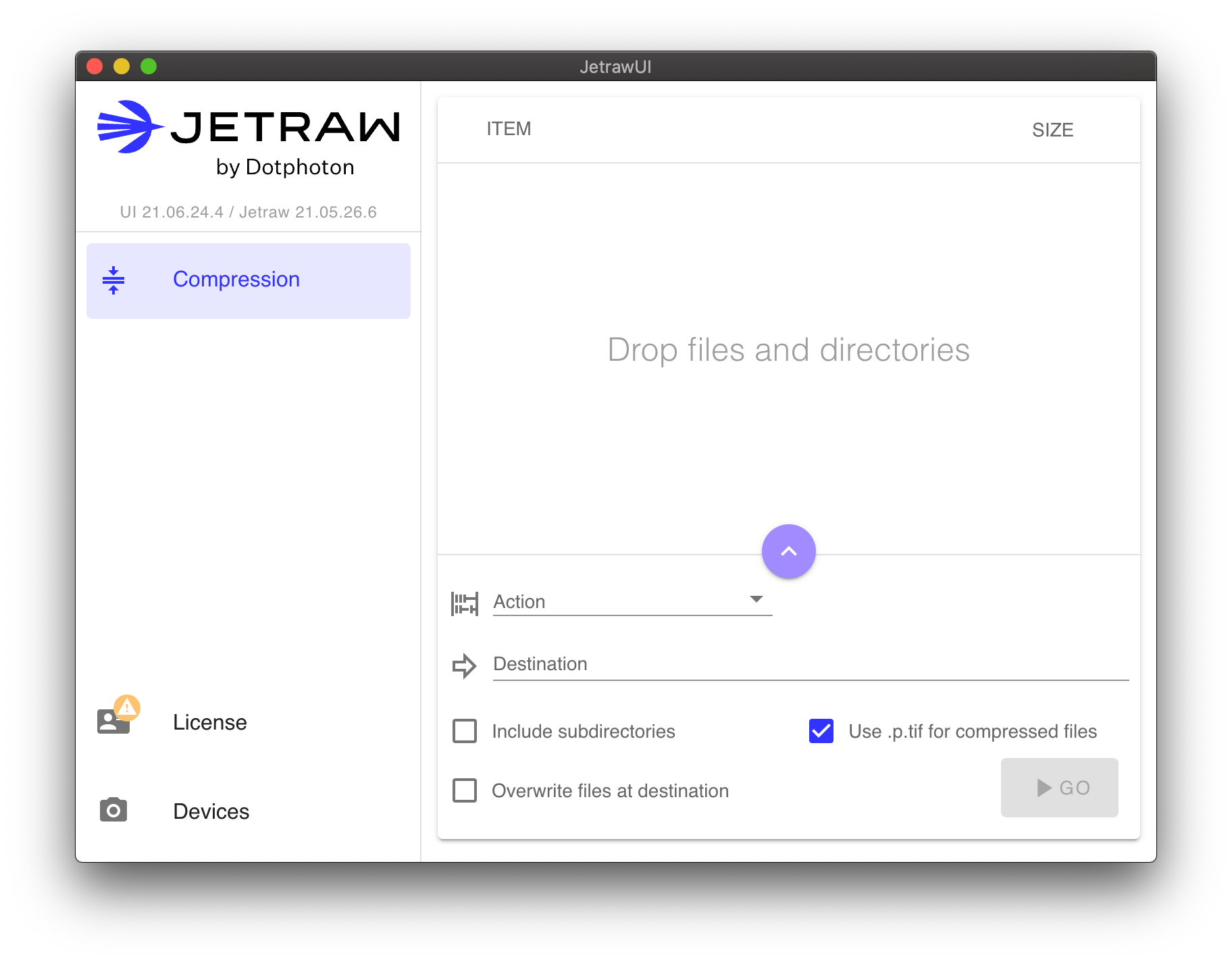
Compressing and decompressing files
To compress or decompress TIFF files:
Open the compression panel by clicking on it in the left sidebar
Drag and drop TIFF files into the file area, or click to browse and select files
Choose the action: compress or decompress
For compression, select the identifier that matches your camera settings (the identifier corresponds to the device calibration you installed)
Choose a destination directory
Click the “Go” button to start processing
Note
In Jetraw UI, noise replacement (image preparation) is done automatically if necessary. When using the command line, two separate commands offer more fine-grained control. See Command Line Interface for command-line usage.
The UI will process the files and display progress information. Once complete, the processed files will be available in the destination directory you specified.
Platform availability
Jetraw UI is available for Windows and macOS. On Linux, only the command-line utilities and development libraries are provided. For Linux users, see Command Line Interface for instructions on using the command-line tools.